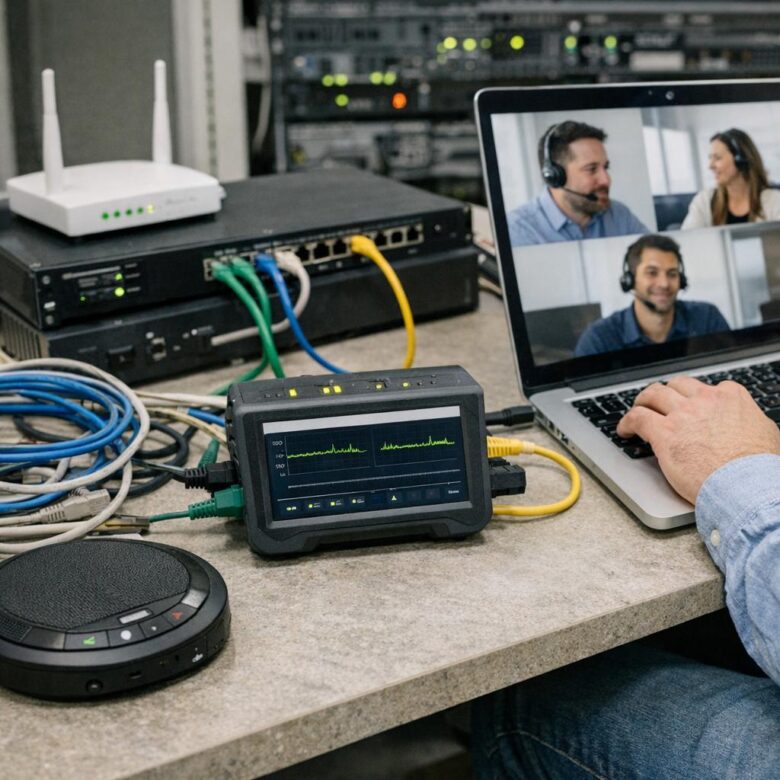
Remote conferencing audio can fail even when a conventional speed test looks acceptable. Real-time voice depends on packets arriving quickly, consistently, and in the correct order. Weak Wi-Fi, upload congestion, unstable broadband, long VPN routes, overloaded devices, blocked UDP, and poorly placed conferencing gateways can create clipped speech, robotic sound, delays, and missing words. The most reliable fix is to identify the impaired segment instead of replacing equipment at random.
Test the affected user
Measure the same device, location, connection, meeting platform, and time period in which the audio problem occurs.
Separate network from endpoint issues
Compare Ethernet, Wi-Fi, VPN, hotspot, headset, browser, and desktop application results before assigning the cause.
Use call telemetry
Platform reports can reveal the direction, timing, participant, network, device, packet loss, jitter, and latency associated with a poor audio stream.
What Jitter and Packet Loss Mean During a Call
Conferencing applications divide audio into small packets and send them continuously. The receiving device must play those packets at regular intervals even though the network may deliver them with changing delays.
Jitter
Variation in packet arrival timing. High or rapidly changing jitter forces the receiving application to compensate with a larger playback buffer.
Packet loss
Packets that never reach the receiver. Repeated or burst loss can remove entire syllables even when the average percentage appears small.
Latency
The time audio takes to move between participants. Excessive delay creates pauses and causes people to speak over one another.
Late discard
A packet may reach the device but arrive too late for playback. It can therefore be discarded by the jitter buffer even though it was not lost in transit.
Average values do not tell the complete story. A call with several brief bursts of loss can sound worse than a call with the same average loss spread evenly over time. Review the timeline, direction, and affected stream rather than relying only on one overall percentage.
Where Remote Audio Quality Can Break Down
Common Causes and the Best First Test
| Possible cause | Typical symptom | Best first comparison | Possible correction |
|---|---|---|---|
| Weak or unstable Wi-Fi | Audio breaks up when the user moves, closes a door, changes rooms, or works far from the access point. | Repeat the call through wired Ethernet from the same device and location. | Improve access-point placement, coverage, channel design, roaming, or use Ethernet for important meetings. |
| Upload congestion | Other participants cannot hear the user clearly while cloud backup, file synchronization, camera upload, or another video call is active. | Pause large outbound transfers and review router upload utilization. | Limit bulk uploads, use traffic shaping, schedule backups, or increase stable upstream capacity. |
| VPN backhaul | Calls are acceptable before connecting to the VPN but degrade when media is routed through a distant corporate gateway. | Compare the approved VPN and non-VPN paths while keeping the same device and conferencing service. | Review media optimization, regional gateways, approved split tunneling, VPN capacity, and security inspection. |
| ISP instability | Audio problems affect several applications, occur at similar times, or continue on Ethernet. | Compare the home broadband connection with an approved mobile hotspot or a second internet service. | Collect time-based evidence, inspect modem statistics, and escalate recurring loss or latency to the ISP. |
| Overloaded endpoint | Audio deteriorates while the computer is using high CPU, memory, storage, browser tabs, virtual backgrounds, or security scanning. | Review system performance during the call and repeat with video disabled or another managed device. | Update the client and drivers, reduce background load, repair the endpoint, or use appropriately sized hardware. |
| Incorrect firewall handling | The platform falls back from its preferred media transport or performs poorly only behind a particular corporate firewall. | Confirm current platform endpoints, ports, UDP reachability, proxy behavior, and inspection policies. | Apply the provider’s current network requirements and remove unsupported media interception or unnecessary proxying. |
| Bluetooth or headset issue | Network statistics look healthy, but one user hears distortion, dropouts, low volume, or microphone interruptions. | Repeat using the device microphone, a wired headset, or another approved audio device. | Update firmware and drivers, reduce wireless interference, replace the accessory, or correct operating-system audio settings. |
Step-by-Step Remote Audio Troubleshooting Process
Record the exact user experience
Document whether the problem is robotic audio, missing words, delay, echo, one-way audio, low volume, call disconnection, or a complete application freeze. Note who heard the problem and whether it affected inbound audio, outbound audio, or both.
Capture the meeting and participant identifiers
Save the platform meeting ID, call ID, participant, device, timestamp, time zone, location, internet provider, network type, VPN state, and application version. Without those details, administrators may be unable to locate the correct telemetry.
Use platform call analytics
Review the conferencing platform’s administrative quality tools for latency, jitter, packet loss, bitrate, transport, device, relay, and network information. Examine each direction separately because one participant’s outbound stream can fail while inbound audio remains clear.
Compare Ethernet and Wi-Fi
Connect the same managed computer to Ethernet and repeat a representative call. A major improvement strongly suggests a wireless coverage, interference, roaming, retry, or local congestion problem.
Compare VPN and approved direct routing
Determine whether the media path changes when the VPN is connected. Review the conferencing provider’s official optimization guidance before excluding media from a tunnel. Security, DNS, identity, compliance, and endpoint protections must remain effective.
Inspect upload utilization
Look for file synchronization, operating-system updates, cloud backup, security cameras, streaming, game downloads, and other calls sharing the connection. Upstream congestion is especially important because remote workers often have less upload capacity than download capacity.
Test during the problem window
A morning test may miss congestion that occurs every afternoon. Reproduce the issue near the same time, from the same room, with the same device, network, VPN state, and household activity whenever practical.
Compare another internet path
Test an approved mobile hotspot or secondary connection. A successful call on the alternate path can help separate the endpoint and platform from the original broadband service or local router.
Review endpoint health
Check CPU, memory, storage, thermal conditions, operating-system updates, audio drivers, client version, headset firmware, browser extensions, virtual backgrounds, security software, and other active conferencing applications.
Look for patterns across the workforce
Group poor sessions by ISP, city, country, router model, operating system, Wi-Fi connection, VPN gateway, media relay, platform version, and time of day. Repeated patterns are more useful than isolated complaints.
Apply one controlled change at a time
Change one variable, repeat the test, and record the result. Replacing the headset, disabling the VPN, changing Wi-Fi, updating the client, and modifying the router simultaneously makes the true correction difficult to identify.
Verify the fix through several calls
A single successful meeting is not enough when the original problem was intermittent. Review multiple representative calls and confirm that quality remains acceptable during normal and busy periods.
Baseline Tests and Call-Specific Evidence
Useful baseline tests
- Wired and wireless upload and download performance
- Latency, jitter, and packet loss to the conferencing service
- Platform readiness or connectivity test
- Router and modem utilization during busy periods
- Endpoint CPU, memory, storage, and Wi-Fi signal
- VPN gateway latency and capacity
Useful call evidence
- Meeting or call identifier
- Participant and affected direction
- Start time, duration, location, and ISP
- Transport protocol and media relay
- Average and maximum loss, jitter, and latency
- Device, headset, client, and network type
How to Interpret Network Thresholds
Thresholds should be treated as platform-specific indicators rather than universal laws. Different services measure latency, jitter, packet loss, discarded packets, and media quality in different ways. The measurement interval and direction also affect the result.
| Official example | Published test values | How to use the values |
|---|---|---|
| Microsoft 365 network connectivity test | The documented Teams test uses less than 1% UDP packet loss, less than 100 ms measured UDP latency, and less than 30 ms jitter as passing values. | Use these values when interpreting that Microsoft test. Do not automatically apply its measurement method to every conferencing platform or monitoring product. |
| Microsoft Teams Call Quality Dashboard | Teams classifies streams using multiple metrics and conditions, including round-trip time, packet loss, jitter, and packet utilization. | Review the actual platform classification and timeline instead of deciding call quality from one isolated metric. |
| Cisco Webex network tools | Webex provides readiness and diagnostic tools that test items such as bandwidth, latency, packet loss, jitter, ports, and route information. | Run the test from the same network the user will use. Web-based readiness tests may not detect every Wi-Fi, VPN, QoS, DNS, or device problem. |
Improving Home Wi-Fi for Business Audio
Wi-Fi can be fast and still be inconsistent
A wireless connection may report a high link rate while experiencing interference, retransmissions, roaming delays, weak signal, or airtime competition. Real-time audio is affected by those short interruptions even when downloads appear normal.
- Use Ethernet for high-priority meetings whenever practical.
- Place the access point in an open and central location.
- Avoid working through several walls or on the edge of coverage.
- Use modern managed hardware appropriate for the household load.
- Review channel congestion instead of selecting channels randomly.
- Separate defective or outdated wireless devices where appropriate.
- Keep router, access-point, and wireless adapter firmware current.
- Test roaming behavior when users move between access points.
QoS for Remote Employees: What It Can and Cannot Do
Quality of Service can help when a managed router controls the congested queue. For example, a home or branch gateway may prioritize approved conferencing traffic ahead of a large file upload.
QoS cannot force every public internet network to preserve a DSCP marking, repair weak Wi-Fi, correct ISP packet loss, increase available bandwidth, or reduce the physical distance to a conferencing service. The policy must be applied where the organization or user actually controls traffic.
VPN Design and Audio Conferencing
Centralized backhaul
A remote user may connect to a nearby cloud meeting through a distant corporate VPN gateway, adding unnecessary latency and more potential congestion points.
Inspection and encryption
Firewall inspection, tunnel processing, proxying, packet loss, and overloaded gateways can affect real-time media even when ordinary web access remains usable.
Approved direct media path
Some platforms publish guidance for optimizing media paths. Any direct routing decision should be reviewed with security, identity, compliance, DNS, and endpoint-management requirements.
Three Common Remote-Work Scenarios
Poor audio only in one room
The same laptop performs well near the router but poorly in a distant bedroom. Ethernet or better wireless coverage is more likely to help than changing the conferencing provider.
Others cannot hear the employee
Outbound audio degrades whenever backup or file synchronization runs. Upstream congestion, local queueing, or limited upload capacity should be reviewed first.
Many users fail on one VPN region
Calls from different ISPs become poor only when connected to the same corporate gateway. Gateway capacity, routing, inspection, and the media path deserve priority investigation.
Quick Remote Audio Triage
Select every statement that matches the current incident. The result suggests the first areas to investigate and does not replace call telemetry or a technical assessment.
Always confirm the result with platform call analytics, user details, time-based tests, and controlled comparisons.
Responding to a Workforce-Wide Audio Incident
Recommended response sequence
- Confirm the affected platform, regions, users, meeting types, and start time.
- Check the conferencing provider, identity service, VPN, ISP, firewall, and cloud-service status.
- Preserve call IDs, quality reports, route information, logs, alerts, and recent configuration changes.
- Compare affected and unaffected users by region, ISP, VPN gateway, device, and application version.
- Apply a targeted workaround such as moving users to another approved gateway, connection, or access method.
- Avoid broad firewall, routing, or security changes without evidence and a rollback plan.
- Verify recovery through multiple live calls and platform telemetry.
- Document the root cause, corrective action, preventive monitoring, and responsible owner.
Common Troubleshooting Mistakes
Download and upload rates do not reveal short loss bursts, route changes, Wi-Fi retries, or application-specific media problems.
Headsets, microphones, drivers, CPU load, echo, device selection, and noise suppression can create similar symptoms.
A successful test from the administrator’s office does not represent the affected employee’s connection and environment.
More bandwidth does not repair unstable Wi-Fi, poor routing, endpoint overload, or an impaired ISP link.
A temporary comparison can support diagnosis, but permanent routing changes require security and compliance review.
Broad QoS rules can place unrelated applications in the real-time priority queue.
Inbound and outbound media can travel through different impaired segments and produce different user experiences.
Multiple changes hide the actual cause and make rollback more difficult.
Remote Audio Quality Checklist
- Collect the meeting ID, participant, timestamp, and time zone
- Record whether inbound, outbound, or both audio directions failed
- Review platform call-quality telemetry before changing the network
- Compare Wi-Fi with wired Ethernet on the same device
- Compare the approved VPN and direct network paths
- Check upload utilization during the affected period
- Test an approved alternate internet connection
- Review CPU, memory, client, drivers, and headset health
- Confirm current UDP, firewall, proxy, and endpoint requirements
- Check modem, router, access-point, and Wi-Fi error information
- Group poor calls by ISP, region, device, gateway, and time
- Use platform-specific thresholds rather than one universal value
- Apply QoS only where the congested queue can be controlled
- Limit backups and large uploads during important meetings
- Make one controlled change and record the result
- Verify the correction through several representative calls
Frequently Asked Questions
Can a call have packet loss even when the internet is fast?
Yes. Bandwidth and packet delivery consistency are different. A connection can provide high download speed while experiencing short bursts of packet loss, Wi-Fi retries, route changes, or upstream congestion that damage real-time audio.
Is jitter the same as latency?
No. Latency is the delivery delay, while jitter describes variation in packet arrival timing. A connection can have moderate latency that remains consistent or lower latency that changes unpredictably.
Can the jitter buffer eliminate every audio problem?
No. A jitter buffer can smooth some timing variation, but a larger buffer also adds delay. It cannot recover every lost packet or make severely delayed packets useful after their playback time has passed.
Should remote employees always use Ethernet?
Ethernet usually removes wireless interference and coverage from the path, making it a valuable comparison and a strong option for important calls. Well-designed Wi-Fi can still provide good conferencing performance when coverage, capacity, and interference are properly managed.
Does QoS work across the public internet?
Not reliably end to end. QoS is most useful on networks and gateways that the organization or user controls. Public internet providers may ignore, rewrite, or remove packet markings.
Why does audio fail only when the VPN is connected?
The VPN may add distance, congestion, inspection, encapsulation, gateway load, or a different internet route. Compare the approved paths and review the conferencing platform’s current media-optimization guidance before changing production routing.
Can a headset problem look like packet loss?
Yes. Bluetooth interference, low battery, a damaged cable, audio enhancements, outdated drivers, incorrect device selection, and microphone processing can create dropouts or distorted sound even when network statistics are healthy.
What information should an employee send to IT?
Send the meeting or call ID, approximate time, time zone, affected participants, direction of the problem, location, ISP, Wi-Fi or Ethernet status, VPN status, device, headset, and a description of what was heard.
Final Takeaway
Reliable remote audio depends on much more than advertised internet speed. The complete experience is shaped by endpoint health, Wi-Fi, upload congestion, broadband stability, VPN routing, firewall policy, internet paths, and the conferencing platform’s media infrastructure.
Begin with the affected call and user, collect platform telemetry, compare one variable at a time, and look for repeatable patterns. The goal is not to eliminate every network fluctuation. It is to keep delay variation and packet loss low enough that the conferencing application can deliver clear, natural conversations throughout the working day.
Official Technical Resources
- RFC 3550: RTP — A Transport Protocol for Real-Time Applications
- RFC 3611: RTP Control Protocol Extended Reports
- Microsoft: Prepare Your Organization’s Network for Teams
- Microsoft: Use Call Quality Dashboard to Manage Call and Meeting Quality
- Microsoft: Troubleshoot Meeting Quality with Real-Time Telemetry
- Microsoft 365 Network Connectivity Test Tool
- Cisco Webex: Use CScan to Test Network Quality
- Cisco Webex: Network Requirements for Webex Services
This article is provided for general informational purposes. Conferencing metrics, network thresholds, media transports, administrative tools, port requirements, and optimization methods vary by provider, platform, subscription, software version, device, and network. Verify important settings through current official documentation before changing a production environment.

The TMPCom Editorial Team creates practical, research-based content about business telecommunications, VoIP systems, network security, compliance, and telecom cost management. Our articles are developed using official documentation, technical standards, and reputable industry sources to help businesses make clearer and more informed technology decisions.